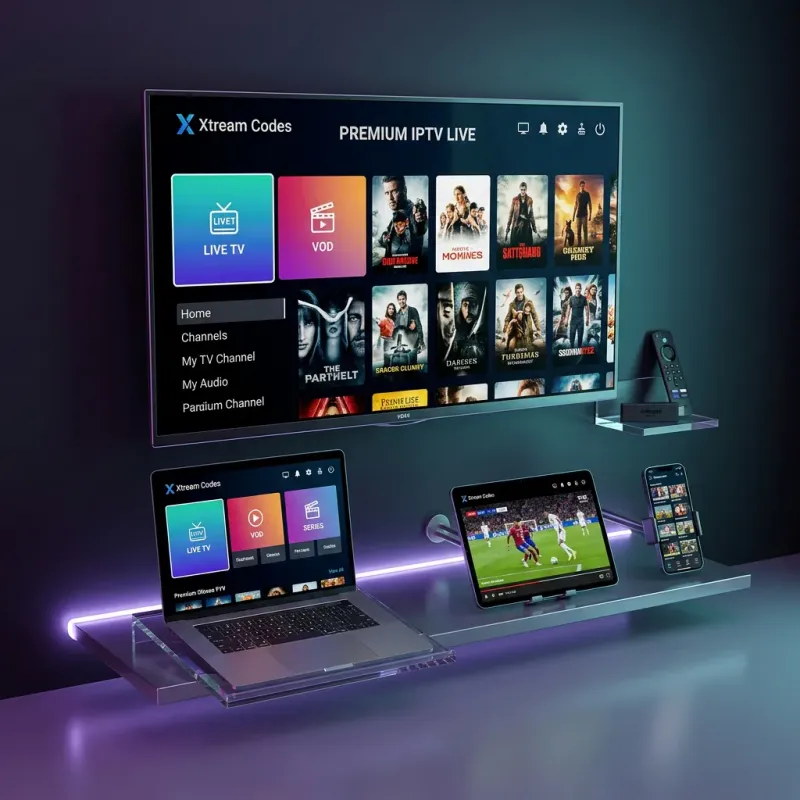
The Amazon Firestick is by far the most popular device for IPTV streaming. It's affordable, portable, and powerful enough to handle 4K content. If you've just subscribed to Xtream Codes (or you're about to start your free 24-hour trial), this guide will walk you through the complete setup process from start to finish.
The entire process takes under 5 minutes, and you don't need any technical expertise. Let's get your xtream codes up and running on your Firestick.
What You'll Need
Before we begin, make sure you have:
- An Amazon Firestick (any generation — Lite, 4K, 4K Max, or Fire TV Cube)
- A stable internet connection (25+ Mbps recommended for HD/4K)
- Your Xtream Codes login credentials (server URL, username, password) — received via email after subscribing
- If you haven't subscribed yet, start a free trial or pick a plan
Step 1: Enable Developer Options on Your Firestick
By default, Firestick blocks app installations from outside the Amazon App Store. You'll need to enable this feature first:
- From the Firestick home screen, navigate to Settings (gear icon)
- Select My Fire TV
- Choose Developer Options
- Toggle "Install Unknown Apps" to ON
- If you see specific apps listed, enable it for the Downloader app
Note: On newer Firestick models (2023+), the option may be under Settings → My Fire TV → Developer Options → "Install unknown apps" → Turn on for specific apps. If you don't see Developer Options, go to Settings → My Fire TV → About → click on your device name 7 times rapidly to unlock developer mode.
Step 2: Install the Downloader App
The Downloader app is a free utility that lets you download and install apps from URLs:
- Go to the Amazon App Store on your Firestick (Search icon)
- Search for "Downloader" by AFTVnews
- Select the app (it has an orange icon) and click Download/Install
- Wait for the installation to complete
Step 3: Install Your IPTV Player App
Now you'll use Downloader to install an IPTV player. We recommend IPTV Smarters Pro — it's the most popular and reliable player for xtream codes:
- Open the Downloader app
- In the URL bar, enter the download URL for IPTV Smarters Pro
- The APK file will download — this takes about 30 seconds
- When prompted, tap "Install"
- After installation, tap "Open" or "Done"
- You can delete the downloaded APK to save space
Alternative players: You can also use TiviMate (best EPG experience), XC IPTV Player (lightweight), or any other xtream codes API-compatible player. The setup process is similar for all of them.
Step 4: Configure Xtream Codes Login
This is where you connect the app to your Xtream Codes subscription:
- Open IPTV Smarters Pro
- You'll see login options — select "Login with Xtream Codes API"
- Enter the following credentials from your welcome email:
- Any Name: Enter any name (e.g., "My IPTV")
- Username: Your xtream codes username
- Password: Your xtream codes password
- Server URL: The server URL (starts with http://)
- Tap "Add User" or "Login"
- Wait for the channel data to load (this may take 30-60 seconds on first login)
Step 5: Start Watching!
Congratulations! You're now connected to Xtream Codes on your Firestick. Here's how to navigate:
- Live TV: Browse by country, category, or search for specific channels
- VOD (Movies): Access the movie library organized by genre
- Series: Find TV series with all episodes and seasons
- EPG: Check the Electronic Program Guide to see what's on
Tips for the Best Firestick Experience
- Use Ethernet: For the most stable connection, use an Amazon Ethernet Adapter for wired internet
- Clear cache regularly: Go to Settings → Applications → Manage Installed Applications → IPTV Player → Clear Cache
- Keep your Firestick updated: Regular firmware updates improve performance
- Use 5GHz WiFi: If using WiFi, connect to your 5GHz band for faster speeds
- Restart before major events: Restart your Firestick before big sports events for optimal performance
Troubleshooting Common Issues
If you experience issues, check these common solutions:
- "Authorization failed": Double-check your credentials (case-sensitive!)
- Buffering/freezing: Check internet speed, try VPN, or see our troubleshooting guide
- Can't install app: Make sure Developer Options are enabled (Step 1)
- No channels loading: Restart the app and re-login
For additional help, contact our support team — we respond within 2 hours.